Prayer times app for Windows: a free desktop widget
The next prayer and a live countdown beside your desktop icons. Click for the whole day, the Qibla and the Hijri date. Free, light and works offline.
Download for Windows Version 0.1.7 · Windows 10 and 11 · 7 MB · free
What is Awqatly for Windows?
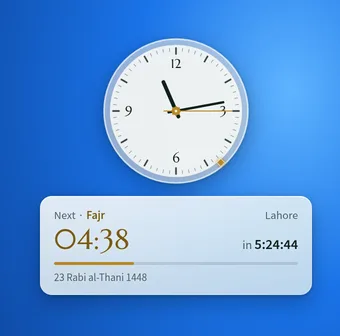
Awqatly for Windows is a free prayer times widget for Windows 10 and 11. It sits on your desktop beside your icons as a classic round clock with the next prayer and a live countdown; one click shows Fajr, Sunrise, Dhuhr, Asr, Maghrib and Isha, the Qibla direction and the Hijri date. It can play the adhan at prayer time (the Shia adhan for Fiqh Jafaria), remind you before each prayer and on Fridays for Jumu‘ah, and works offline.
Awqatly for Windows at a glance
| Price | Free, no adverts, no account |
|---|---|
| Works on | Windows 10 (1809 or later) and Windows 11, 64-bit |
| Version | 0.1.7 |
| Download size | About 7 MB (with the adhan recordings) |
| Prayer times | Fajr, Sunrise, Dhuhr, Asr (Standard and Hanafi), Maghrib, Isha |
| Calculation | 17 Sunni methods or Shia (Fiqh Jafaria); default = your country's usual method |
| Also shows | Qibla direction, Hijri date, live countdown |
| Reminders | At the prayer time or 5, 10 or 15 minutes before, optional sound |
| Languages | English, French, German, Dutch, Turkish, Arabic, Urdu, Swedish, Danish |
| Offline | Yes, two months saved on your computer |
What can it do?
- Always on your desktop. It sits beside your icons, behind your open windows, and stays visible when you press Win+D. Drag it anywhere; it remembers the spot.
- A classic clock. A round analog clock, like the Windows gadgets of old, showing your city's time with the coming prayers marked on its rim and the next one in gold. You can switch it off.
- Next prayer at a glance. The time of the next prayer with a live countdown, and a thin bar showing how much of the current prayer time has passed.
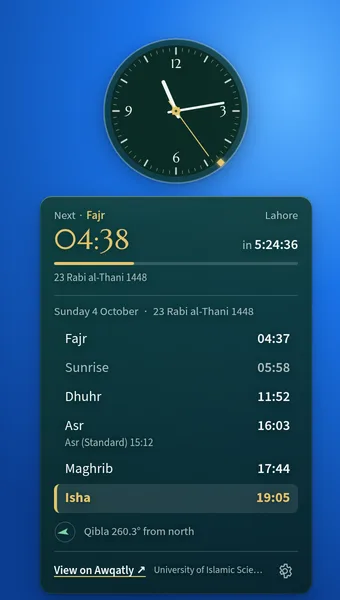
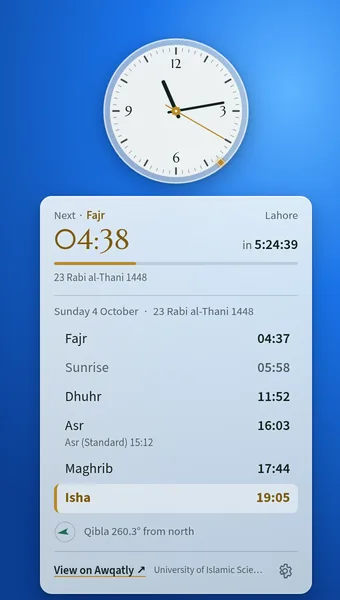
- The whole day in one click. Fajr, Sunrise, Dhuhr, Asr (both schools), Maghrib and Isha with the current prayer highlighted, today's Gregorian and Hijri date, and the Qibla direction.
- Adhan and reminders. A Windows notification at each prayer you choose, or 5, 10 or 15 minutes before; the adhan at prayer time (with its own Fajr adhan, or the Shia adhan for Fiqh Jafaria) or a gentle chime; a Jumu‘ah reminder on Fridays; quiet during Do not disturb and full-screen apps.
- Hijri date and occasions. Under the countdown, today's Hijri date and the day's Islamic occasion, Sunni or Shia, or tomorrow's the day before.
- Your way of praying. Sunni or Shia (Fiqh Jafaria) times, the method most mosques in your country use or another of your choice, Hanafi or Standard Asr, and a 12-hour or 24-hour clock.
- Crystal glass, light or dark. A see-through widget that follows Windows' light or dark mode, or the one you choose.
- Works offline. Two months of times are saved on your computer and refreshed in the background. When a new version is out, the widget tells you.
How do I put prayer times on my Windows desktop?
- Download the installer. Click “Download for Windows” on this page to get the Awqatly installer (about 7 MB, with the adhan recordings).
- Run it. Open the downloaded file. If Windows shows “Windows protected your PC”, choose More info, then Run anyway. No administrator rights are needed.
- Choose your city. Press “Detect my city” or search for it, choose Sunni or Shia (Fiqh Jafaria) and, if you like, a calculation method, then press Save.
- Done. The widget appears on your desktop. Click it for the whole day, drag it anywhere, and right-click the Awqatly icon near the clock for reminders and settings.
Where do the prayer times come from?
From awqatly.com: the same astronomical calculation as your city's prayer times page, with the method most mosques in your country follow and any local moon-sighting adjustment to the Hijri date. Read how prayer times are calculated. The app never invents mosque congregation (jamaat) times.
Is it private?
No account and no tracking. The app asks awqatly.com for your city's prayer times and, only when you press “Detect my city”, for your approximate location from your internet connection (nothing is stored). Your settings stay on your computer. See the privacy policy.
Questions about Awqatly for Windows
What is the best free prayer times app for Windows?
Awqatly for Windows is free, has no adverts and no account, and keeps the next prayer and a live countdown on your desktop. It uses the same calculation as awqatly.com, including the method most mosques in your country follow.
How do I put prayer times on my Windows desktop?
Download and run the Awqatly installer, choose your city and press Save. A small widget with the next prayer and a countdown appears beside your desktop icons; click it to see all of today’s times.
Is Awqatly for Windows free and safe?
Yes. It is free, with no adverts, account or in-app purchases. It only contacts awqatly.com for your city’s prayer times, and your settings stay on your computer. The installer is not yet code-signed, so Windows may ask you to confirm before it runs.
Which prayer time calculation methods does it support?
17 Sunni methods, including Muslim World League, ISNA, Umm al-Qura, Egyptian, Karachi, Diyanet and the Moonsighting Committee, plus Shia Ithna Ashari (Fiqh Jafaria, Qum) times. By default it uses the method most mosques in your country follow, and you can choose Hanafi or Standard Asr.
Does it work offline?
Yes. It saves this month and next month on your computer and keeps working without internet until they run out, refreshing them in the background whenever you are online.
Does it remind me of prayer times or play the adhan?
Yes. It shows a Windows notification at each prayer you choose, or 5, 10 or 15 minutes before, and can play the adhan exactly at prayer time: the adhan, the Fajr adhan at Fajr, or the Shia adhan when you use Fiqh Jafaria times. A Stop button appears while it plays, and it stays quiet during Do not disturb, presentations and full-screen games. On Fridays it reminds you of Jumu‘ah 30 minutes before Dhuhr.
Will the widget stay on screen when I press Win+D?
Yes. The widget lives on the desktop layer: behind your open windows, visible when you show the desktop, and never in the taskbar.
Does it support Shia (Jafaria) prayer times?
Yes. Choose Shia (Fiqh Jafaria) in the settings for times by the Qum (Jafari) method with a single Asr time, where Awqatly offers them.
Which Windows versions and languages are supported?
Windows 10 (version 1809 or later) and Windows 11, 64-bit. The app is in English, French, German, Dutch, Turkish, Arabic, Urdu, Swedish and Danish.
How do I update or uninstall it?
When a new version is out, the widget shows “New version available” and links to this page; run the new installer over the old one. To uninstall, use Settings → Apps in Windows.
Is there a Mac or phone version?
Not yet. On a phone, add awqatly.com to your home screen: it works offline and can send prayer reminders.